

If you want to speed up your WordPress site, start with the big five: get better hosting, set up aggressive caching, shrink your images, clean up your plugins, and use a Content Delivery Network (CDN). These are the usual suspects behind slow websites, and tackling them first will give you the most noticeable bang for your buck.
Why a Slow WordPress Site Is Costing You Money
Let's be blunt: every second your website takes to load is costing you. A slow site isn't just a minor annoyance; it’s a business problem that actively sends potential customers clicking away to your competition. In a world where everyone expects instant results, a sluggish website is a silent killer for conversions.
The financial hit is real. When page load times creep up, so do abandonment rates. That means lost sales, fewer sign-ups, and a weaker bottom line. It’s a straightforward relationship—the longer someone has to wait, the more likely they are to leave for good.
The Core Performance Killers
So, what's usually slowing things down? More often than not, a few common culprits are to blame. Bloated, unoptimized images can easily make up 50-70% of a page's total weight. Add in render-blocking code and too many plugins, and you can quickly push load times past the critical three-second mark. That kind of lag can spike your bounce rate by over 53%.
Meeting Google's Core Web Vitals targets, like keeping your Largest Contentful Paint (LCP) under 2.5 seconds, is non-negotiable for both user experience and SEO. This is especially true when you consider that WordPress powers over 43.2% of all websites on the internet. For a deep dive into the numbers, check out this comprehensive technical guide.
To get a clear picture of what's happening, run your site through a tool like GTmetrix. It gives you a detailed report card on your site's performance.
This report breaks down exactly how long your site takes to load and assigns a performance grade, pinpointing specific areas like structure and Core Web Vitals that need your attention.
Prioritizing Your Optimization Efforts
With so many things to fix, it’s easy to feel overwhelmed. The secret is to focus on the changes that deliver the biggest impact first. Getting a handle on the fundamentals of how to improve website speed will help you make smarter, more strategic decisions.
"For every second a site loads faster, the conversion rate improves by an average of 17%. This statistic alone should be enough to convince any business owner that speed optimization isn't a technical task—it's a core business strategy."
To make it easier to get started, I've put together a table summarizing the quickest wins that offer the most significant performance boosts.
Quick Wins for WordPress Speed Optimization
This table breaks down the most effective initial steps you can take to improve your site's speed, showing the impact and effort required for each.
| Optimization Tactic | What It Fixes | Potential Impact | Time to Implement |
|---|---|---|---|
| Upgrade Hosting | Slow server response (TTFB), resource bottlenecks | High | 1-4 hours |
| Implement Caching | Repetitive database queries, slow page generation | High | < 1 hour |
| Optimize Images | Large page sizes, slow media loading | High | Ongoing |
| Use a CDN | High latency for global visitors | Medium-High | < 1 hour |
| Audit Plugins/Theme | Code bloat, excessive HTTP requests | Medium | 1-2 hours |
After tackling these, you'll have a much faster foundation to build upon. Here’s a little more on why these first few steps are so critical:
-
Performance Hosting: Your hosting is the engine of your website. Moving from a cheap, crowded shared server to a managed WordPress host or a capable VPS is a game-changer. It gives you the server resources, modern tech (like NVMe storage), and a much faster Time to First Byte (TTFB) you need.
-
Aggressive Caching: Caching is like giving your website a superpower. It creates static, lightweight copies of your pages so that WordPress doesn't have to build them from scratch for every single visitor. This is often the single biggest speed boost you can give your site.
-
Image Optimization: This one is non-negotiable. Compressing your images and converting them to modern formats like WebP dramatically slashes page weight, which is essential for fast loading, especially for your mobile visitors.
Your Performance Foundation: Choosing the Right Hosting
Before you even think about tweaking plugin settings or compressing a single image, we need to talk about the bedrock of your website's performance: your hosting. It's so easy to assume all hosting plans are basically the same, but the truth is, your server environment is the single biggest factor that dictates how fast your WordPress site can be. Skimping here is like trying to win a Grand Prix in a station wagon—you're just not set up for success.
A lot of us start out with cheap shared hosting, which is totally fine for a simple blog just getting off the ground. But as your site grows, starts pulling in more traffic, or begins handling e-commerce, that shared environment quickly becomes a major bottleneck. You're fighting for server resources—CPU, RAM, bandwidth—with dozens, sometimes hundreds, of other websites. A traffic spike on your "neighbor's" site can slow yours to a crawl.
This decision tree really drives home how your hosting and caching setup forms the core of a fast website.
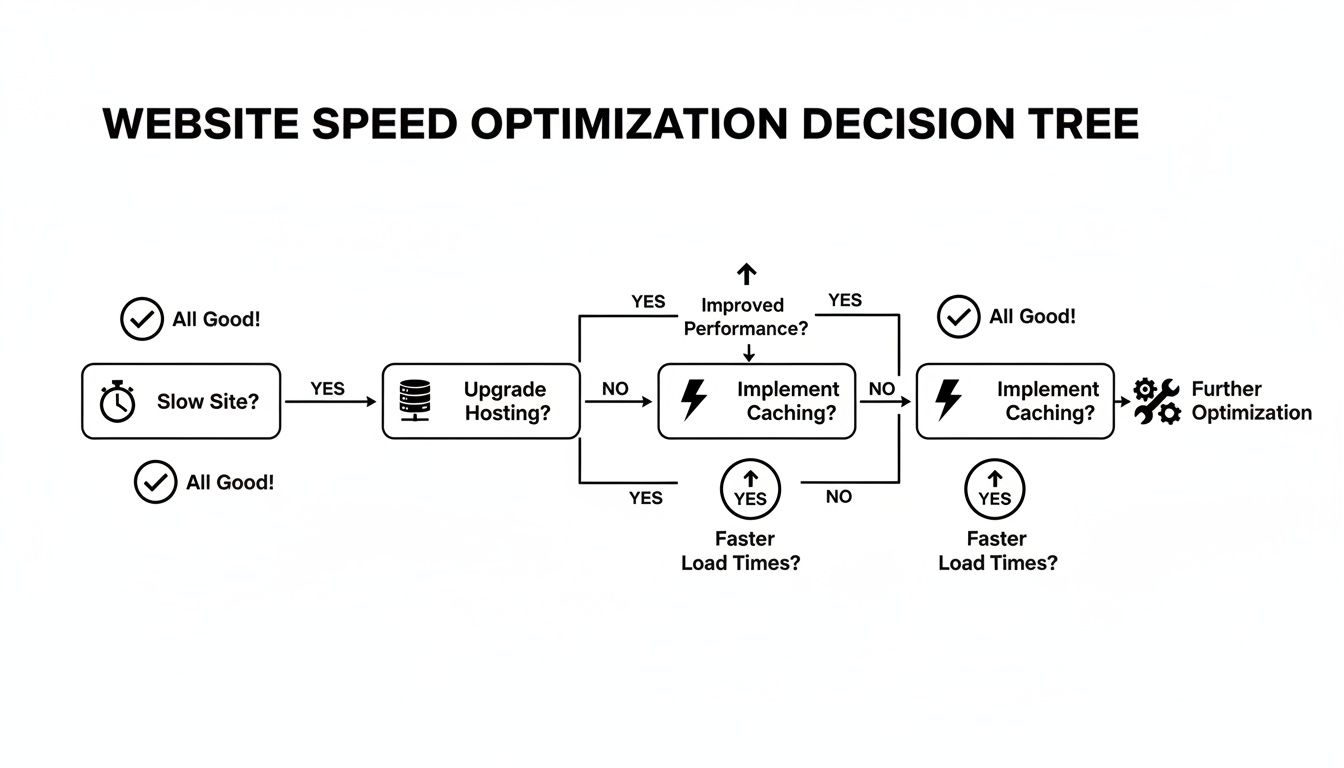
As you can see, before you dive into the nitty-gritty of on-page optimizations, you have to get your underlying server infrastructure right.
Understanding Hosting Tiers
Moving away from basic shared hosting opens up some powerful options. Each one offers a different level of performance for anyone serious about speeding up their WordPress site.
- Shared Hosting: The entry-level choice where your site lives alongside many others on one server. It’s cheap, but it suffers from the "noisy neighbor" problem—another site’s resource hogging can directly tank your performance.
- Virtual Private Server (VPS): A solid step up. A VPS gives you a dedicated slice of a server's resources. While you're still on a shared physical server, your allocated resources are yours alone. This brings far more stability and control than a standard shared plan.
- Managed WordPress Hosting: This is the premium, white-glove option. These hosts build their entire infrastructure specifically for WordPress, handling all the server management, security, updates, and performance tuning for you. They often bundle in caching, CDNs, and expert support, making it the easiest way to get top-tier speed without becoming a server admin yourself.
If your business depends on its website, investing in quality managed WordPress hosting is one of the smartest moves you can make. The performance boost and sheer peace of mind are well worth it. If you're looking to make a switch, our guide on https://www.sugarpixels.com/how-to-choose-a-web-host/ can help you weigh the options.
Key Features of Performance-Focused Hosting
When you're shopping for a host, don't just get distracted by storage space and bandwidth numbers. The technology powering the server is what really matters.
Look for providers that offer LiteSpeed servers. These are a modern, high-performance replacement for the old-school Apache web server. LiteSpeed handles traffic way more efficiently and comes with its own powerful caching engine that can give your site a massive speed boost.
You should also prioritize hosts that use NVMe SSD storage. This is the fastest storage tech available right now, leagues ahead of traditional SSDs. Faster storage means your site's files and database can be accessed almost instantly, which is a game-changer for reducing your Time to First Byte (TTFB). For my friends down under, choosing the best Australian hosting for WordPress is critical if that's where your audience is.
Your hosting plan isn't just a recurring expense; it's an investment in user experience and conversion rates. A slow TTFB caused by cheap hosting is a performance hurdle that no amount of on-site optimization can ever fully clear.
The Easiest Server-Side Speed Boost
Finally, here's one of the simplest yet most effective things you can do for your site's backend speed: make sure you're running a recent version of PHP. PHP is the programming language that powers WordPress, and every new version comes with huge performance gains.
Just upgrading from PHP 7.4 to PHP 8.1, for example, can allow your server to handle significantly more requests per second with less strain. Most good hosts let you switch PHP versions with a click in your control panel. Check with your provider and make sure you're on the latest stable version they support. It's an instant, noticeable speed increase.
Implementing Caching and a Content Delivery Network
If there's one thing you do to speed up your WordPress site, make it this. Caching is the single most powerful tool in your arsenal for delivering immediate, noticeable performance gains.
Without it, WordPress has to do a lot of work every time someone visits your site. It has to grab posts from the database, run PHP scripts, load theme files, and assemble everything into a webpage—for every single visitor, over and over again. It’s wildly inefficient.
Think of it like a barista making every single latte from scratch, even when ten people in a row order the exact same thing. A smart barista would make a few popular drinks ahead of time. Caching does just that: it creates static HTML copies of your pages so your server can hand them over in a flash, no assembly required.
This is a non-negotiable step for a fast website. A solid caching strategy can often slash page load times by a staggering 40-60%. It’s the key to reducing your server load and dramatically improving your Time to First Byte (TTFB).
The Different Layers of Caching
Caching isn't a single switch; it works on a few different levels. Understanding them helps you see why it's so effective.
- Page Caching: This is the big one. It saves the final, fully-built HTML of your pages. When a visitor arrives, the server just sends this ready-made file instead of running all the PHP and database queries again.
- Browser Caching: This tells a visitor's web browser to keep a local copy of files that don't change often, like your logo, CSS, and JavaScript. The next time they visit another page, those files load instantly from their own computer, making navigation feel incredibly snappy.
- Object Caching: This is a more advanced trick for dynamic sites with a lot of database activity, like e-commerce or membership sites. It stores the results of common database queries in memory, which is a game-changer for backend performance.
For sites with heavy traffic, a specialized tool like Object Cache Pro can be transformative by minimizing database hits. We’ve seen this firsthand; we bundle WP Rocket (a $59/year value) in our premium plans because it handles about 80% of these optimizations right out of the box, helping our clients consistently hit PageSpeed scores of 90 and above. You can discover more insights about high-traffic performance on pantheon.io.
Getting Started with Caching Plugins
For most of us, a plugin is the easiest way to get this done. A few stand out from the crowd.
- WP Rocket: My top pick for anyone who wants maximum results with minimal fuss. It's a premium plugin, but its user-friendly interface and comprehensive features (caching, file optimization, lazy loading, and more) are well worth it.
- LiteSpeed Cache: A fantastic, free, and incredibly powerful plugin. The only catch? Your site must be on a LiteSpeed web server to use its best features. If your host uses LiteSpeed, this is a no-brainer.
Once you install a plugin like WP Rocket, just enabling the main caching functions—page caching, browser caching, and file minification—will give you a huge boost right away.
Supercharge Global Speed with a CDN
Caching fixes your server's response time, but a Content Delivery Network (CDN) solves a different problem: geography.
If your server is in Dallas, a visitor from Sydney has to wait for the data to travel halfway around the globe. That physical distance creates a delay called latency.
A CDN fixes this by creating a global network of "edge" servers. It copies your site's static files—images, CSS, JavaScript—and stores them on servers all over the world.
When someone from Sydney visits your site, the CDN serves those files from a server in Sydney, not Dallas. This simple change slashes latency and makes your site feel fast for everyone, no matter where they are.
Getting a CDN set up is easier than you might think. Most good caching plugins, including WP Rocket, integrate directly with popular CDNs like Cloudflare or their own built-in services. Often, it's as simple as flipping a switch. The plugin then rewrites your asset URLs to serve them from the CDN's lightning-fast network.
Combining caching with a CDN is the one-two punch that forms the foundation of any serious WordPress speed optimization project.
Once you've sorted out your server and caching, it's time to look at what's happening right on the page. This is where most of the "weight" comes from—heavy images and messy code are almost always the biggest culprits slowing things down. Getting these on-page elements under control is non-negotiable for a snappy website.
Large, unoptimized images are notorious for killing performance. Think about it: every time someone visits your page, their browser has to download all those visuals. If your main banner is a beautiful but massive 2MB photo, that single file can grind everything to a halt, wrecking your Largest Contentful Paint (LCP) score in the process.

The goal isn't just to shrink files, but to be smart about how they're delivered. A modern approach ensures users download only what they need, in the most efficient format available.
Taming Your Media Library
First things first, let's get that media library whipped into shape. This means compressing what you already have and setting up a better workflow for anything new you upload. Thankfully, some fantastic WordPress plugins can handle almost all of this for you.
-
Compress Everything: Grab a plugin like ShortPixel, Imagify, or Smush to automatically compress your images on upload. These tools are incredible, often cutting file sizes by 50-80% without any noticeable drop in quality. Most also have a "bulk optimize" feature to go back and fix all your old images.
-
Use Next-Gen Formats: Formats like WebP are a game-changer. They offer way better compression than old-school JPEGs and PNGs, meaning you get the same visual quality in a much smaller file. The best optimization plugins can automatically convert your images to WebP and serve them to browsers that support it. It's a huge win.
-
Resize Before You Upload: Never upload an image that's bigger than it needs to be. If your main content area is 800px wide, don't upload a 3000px wide photo for it. WordPress does a decent job of creating smaller versions, but for the best results, resize your images to their maximum display size before they ever hit your media library.
If you do only one thing on this list, make it lazy loading. This simple trick stops the browser from loading images and videos until a user actually scrolls down to see them. It makes the initial page load incredibly fast.
Nearly every good caching or image optimization plugin has a lazy-loading checkbox. Turn it on. It's an absolute must for any site with more than a couple of images.
Cleaning Up Your Code
Beyond images, your site's CSS and JavaScript files also add to the load time. Every single stylesheet or script from your theme and plugins is another request the browser has to make. Even with modern protocols like HTTP/2 that handle requests better, bloated code files will still slow you down.
The fix involves two main steps: minification and combination.
-
Minification: This process is like a digital decluttering for your code. It removes all the unnecessary characters—spaces, comments, line breaks—that humans need to read the code but browsers don't. This makes the files significantly smaller.
-
Combination: This technique, also called concatenation, bundles multiple CSS or JavaScript files into one. So, instead of making ten separate requests for ten small CSS files, the browser just makes one request for a single, combined file.
Plugins like WP Rocket or Autoptimize are brilliant at this. They scan your site and handle the minifying and combining automatically. Just a heads-up: always test your site carefully after turning these features on. Sometimes, combining scripts can cause issues if they need to load in a specific order. If you want a deeper dive, our guide on how to improve website loading speed has more details.
Advanced Script Loading Tactics
Ready to take it a step further? You can get even more speed by controlling how and when your JavaScript loads. Let's be honest, not every script is critical for that first-glance experience. Things like chatbot widgets, analytics trackers, or social sharing buttons can wait.
By delaying these non-essential scripts, you let the browser focus on rendering the important stuff first. This makes the page feel faster and more responsive, which directly helps metrics like Interaction to Next Paint (INP). In your optimization plugin, look for a setting called "Delay JavaScript Execution" or "Defer JavaScript." This small tweak can make your site feel instantly quicker to your visitors.
A WordPress Housekeeping and Maintenance Checklist
Once you’ve sorted out the big-ticket items like hosting, caching, and on-page assets, the ongoing battle for speed shifts to regular maintenance. Think of your WordPress site like a well-oiled machine—it needs consistent tune-ups to stay in peak condition. Over time, your site accumulates digital dust in the background, quietly eating up resources and slowing you down.
This junk comes from everywhere: old plugins you forgot about, clunky themes, and a database that's getting clogged with data it no longer needs. A smart, proactive housekeeping plan is your best bet for protecting the speed gains you’ve worked so hard for.
Conduct a Ruthless Plugin and Theme Audit
Let's be clear: not all plugins are built the same. Some are lean, mean, and do one thing exceptionally well. Others are bloated monstrosities that load scripts and styles on every single page, whether they're needed or not. A regular audit is your first line of defense.
Go through your plugin list and be ruthless. Deactivate and delete anything you aren't actively using. Have a plugin you only fire up once a quarter? See if you can find a browser-based tool or a different workflow to replace it. Every single active plugin adds a little bit of processing overhead and a potential security risk.
The real goal isn't just to have fewer plugins; it's to have smarter plugins. A site running 20 well-coded, focused plugins will almost always run faster than a site with 10 bloated, do-everything plugins.
For the plugins you decide to keep, it’s time to put on your detective hat. I recommend installing a free tool like Query Monitor. It’s a developer’s best friend, giving you a behind-the-scenes look at what’s happening on your site. You can see exactly which plugins are making slow database queries or loading way too many scripts. You might be shocked to discover your simple contact form plugin is adding half a second to your load time.
When you find a culprit, start looking for a lightweight alternative. There's almost always a more performance-focused option out there that gives you the core functionality without the baggage.
It's easy to get attached to multi-purpose plugins that promise to do everything, but focusing on single-purpose tools is a much better strategy for performance.
Common Plugin Types and Their Lightweight Alternatives
| Functionality | Common Bloated Plugin | Recommended Lightweight Alternative |
|---|---|---|
| Page Builder | Elementor, Divi | GenerateBlocks, Kadence Blocks |
| SEO | Yoast SEO, Rank Math | The SEO Framework, SEOPress |
| Social Sharing | AddThis, Shareaholic | Scriptless Social Sharing, Novashare |
| Contact Forms | Contact Form 7, WPForms | Fluent Forms, Kadence Blocks Form |
| Analytics | MonsterInsights | Independent Analytics, GA Google Analytics |
Choosing the right tool for the job prevents unnecessary code from slowing down your site, leading to a much faster experience for your visitors.
Tame Your WordPress Database
Your WordPress database is the heart of your site. It stores every post, page, comment, user setting—everything. As you add content and people interact with your site, the database grows. Without a little TLC, it gets clogged with digital junk.
Here’s what usually clutters up your database:
- Post Revisions: Every time you hit "Save Draft," WordPress stores a complete copy. A single blog post can easily end up with dozens of old revisions, taking up way more space than needed.
- Transients: Plugins use these to store temporary data. But sometimes they forget to clean up after themselves, leaving old transients to bloat your database tables.
- Spam Comments: Even if they're not visible on your site, thousands of unapproved spam comments might be sitting in your database, waiting to be deleted.
- Orphaned Data: When you delete a plugin, it doesn't always take its settings with it. This orphaned data can hang around for years.
A bloated database has a direct, negative impact on your server's response time, which you’ll see as a higher Time to First Byte (TTFB). The server has to dig through more junk to retrieve the information it needs, and that takes time. Our comprehensive website maintenance checklist dives deeper into all these essential tasks.
Automate Your Database Cleanup
Trying to clean your database by hand is both tedious and risky—one wrong move and you could break your site. The much smarter approach is to use a trusted plugin to automate the job.
A tool like WP-Optimize is fantastic for this. You can set it up on a weekly or monthly schedule, and it will safely clear out old revisions, purge expired transients, delete spam, and optimize your database tables without you lifting a finger.
The difference this makes can be stunning. For example, just by reducing autoloaded database options from 2.8MB to 700KB, one WooCommerce store saw its TTFB improve by 28%. In broader case studies, sites that underwent a full optimization saw their LCP drop to 1.9s (a 47% improvement), INP fall to 145ms (48% faster), and TTFB shrink to just 450ms (a 59% reduction). You can learn more about these performance findings from Next3 Offload.
Setting up a regular cleanup schedule is a cornerstone of any good maintenance plan and ensures your site’s backend stays lean, mean, and fast for the long haul.
Common Questions After Speeding Up WordPress
Once you've done the heavy lifting and optimized your site, a few questions almost always come up. Getting these right is key to keeping your site fast over the long haul. Let's tackle some of the most common ones I hear from clients and colleagues.
How Often Should I Be Running Speed Tests?
Think of speed testing less like a one-off task and more like a regular health check for your website. You absolutely want to run a test right after making any big change. Did you just install a new plugin, switch themes, or launch a major new feature? Test it. This gives you immediate feedback on how that change affected performance.
For routine monitoring, I recommend checking your Core Web Vitals report in Google Search Console about once a month. Beyond that, running a benchmark with a tool like GTmetrix or PageSpeed Insights quarterly is a great habit. It helps you spot performance creep before it turns into a real headache for your visitors.
Do Page Builders Like Elementor or Divi Really Slow Down a Site?
The short answer is yes, they can. It's the classic trade-off: convenience for performance. Page builders like Elementor or Divi add their own layers of code—extra CSS and JavaScript—and often increase the number of database queries needed to build a page. This can definitely result in slower load times compared to a leaner setup.
But let's be realistic, their ease of use is a game-changer for many people. If you're committed to using a page builder, you just have to be extra disciplined with your other optimizations to make up for it. That means you can't skimp on great hosting, and you need to be aggressive with caching, use a CDN, and take the time to disable any modules or widgets in the builder that you aren't using.
If pure, unadulterated speed is your top priority, the native Gutenberg block editor paired with a lightweight theme is almost always going to win.
The Bottom Line: A page builder doesn't automatically mean a slow site, but it raises the performance stakes. You have to be proactive with caching, hosting, and optimization to offset its overhead.
What's TTFB and Why Should I Care About It?
TTFB stands for Time to First Byte. It’s a core server health metric that measures exactly how long your browser waits to get the very first piece of data from your website's server. Think of it as the server's reaction time. A high TTFB is a dead giveaway that your server is struggling to respond.
This delay usually boils down to one of three culprits:
- Slow, cheap hosting that just can't keep up with requests.
- A bloated database clogged with old post revisions, transient data, and plugin leftovers.
- An old, outdated version of PHP that processes code much less efficiently than modern versions.
TTFB is mission-critical because nothing else on your page—images, scripts, styles—can even start loading until that first byte arrives. It's the starting gun for your entire page load. A snappy TTFB (ideally under 400ms) is a sign of a healthy server and a well-optimized backend. Caching is your number one weapon for slashing this number.
Is It Better to Use One Big "Do-Everything" Plugin or Several Small Ones?
From a performance perspective, it's almost always better to use several focused, single-purpose plugins. The reasoning is pretty straightforward. A massive, multi-functional plugin often loads all its scripts and styles on every page, even for features you aren't using. That's a lot of unnecessary weight.
In contrast, a well-coded plugin built to do just one thing is designed to be lean. It only loads its assets when and where it's actually needed. The goal isn't just to minimize the number of plugins. The real aim is to have the most efficient set of plugins that do their job brilliantly without dragging down the rest of your site.
At Sugar Pixels, we believe a fast, beautiful website is the foundation of a successful online presence. If you're tired of battling slow load times and want an expert team to build and maintain a high-performance site for you, we're here to help. Explore our web design and maintenance plans to see how we can take the technical hassle off your plate so you can focus on growing your business. Discover your perfect solution with us today!