

So, what exactly is a Google Analytics goal? Think of it as a specific action you want a user to take on your website—the finish line for your marketing efforts. This could be anything from a customer completing a purchase, a potential lead filling out a contact form, or someone signing up for your newsletter.
Tracking these goals is the only way to connect your website traffic to actual business value.
Why Google Analytics Goals Are Your Most Important Metric
Let's be real for a moment. Vanity metrics like page views and session duration are nice to look at, but they don't pay the bills. A spike in traffic might look impressive in a report, but if none of those visitors are doing anything that actually grows your business, what's the point?
This is precisely where Google Analytics goals come in. They bridge that critical gap between abstract data and real, actionable intelligence.
When you set up goals, you turn your analytics platform from a simple reporting tool into a powerful diagnostic system. You stop just looking at how many people visit and start understanding what your most valuable visitors are actually doing.
From Raw Data to a Clear Story
Without goals, you’re just swimming in a sea of numbers. With them, you can start piecing together a clear story about how your website is performing and answer the questions that truly matter to your business:
- Which marketing channels are actually driving leads? By tracking form submissions, you can finally see whether your paid ads, social media campaigns, or organic search traffic are bringing in the best visitors.
- Are my landing pages working? If a page is getting thousands of views but almost no goal completions, that’s a huge red flag telling you the design or copy isn't resonating.
- What's the real ROI on my marketing spend? By assigning a dollar value to each goal, you can calculate a tangible return on your campaigns and make smarter budget decisions.
A website without goals is like a ship without a rudder. You might be moving, but you have absolutely no control over where you're headed. Setting up goals lets you steer your marketing strategy toward profitable outcomes.
The Evolution to GA4 Conversions
Getting a handle on this is more critical than ever, because the game has changed. What we’ve known for years as "goals" in Universal Analytics have evolved into a more flexible system of "conversion events" in Google Analytics 4 (GA4). And trust me, this is more than just a name change—it’s a fundamental shift to a more powerful, event-based tracking model.
This transition has been a big deal. As of early 2025, data showed that while about 44 million websites were using Google Analytics, only 14.2 million had actually migrated to GA4. That's just 32% of the total installations. This points to a massive learning curve in the industry, which is why it's so important to understand both the classic concept of goals and the new world of GA4 conversions. You can discover more insights about Google Analytics adoption rates to see how the industry is adapting.
This new model is, without a doubt, the future of measuring success online.
UA Goals vs. GA4 Conversions: It’s More Than Just a Name Change
If you've been working with Google Analytics for a while, you know that "Goals" were the bedrock of performance tracking in Universal Analytics. But with the move to Google Analytics 4, that entire concept has been upended. This isn't just a simple rebranding—it’s a fundamental shift in how we measure what matters.
Think of it this way: Universal Analytics (UA) forced us into a box. We had to define our goals using one of four rigid types: Destination, Duration, Pages/Session, or Event. This system was often clunky. For instance, if you wanted to track a simple button click as a goal, you had to first set up the click as a custom event, and then create a separate goal that was triggered by that event. It was a two-step process that always felt a bit disconnected.
In GA4, Everything Starts with an Event
Google Analytics 4 completely tears down that old structure. Now, almost every interaction a user has with your site is simply an event. A page view is an event. Scrolling down the page is an event. A file download is an event.
The real power here is in the simplicity. You don't need a separate "Goals" section anymore.
You just tell GA4 which of your existing events are valuable to your business by flipping a switch to mark them as a conversion. That's it. This makes tracking far more direct and intuitive.
This simple diagram really nails the concept—it shows how you turn raw traffic into measurable business outcomes by tracking the actions that matter.
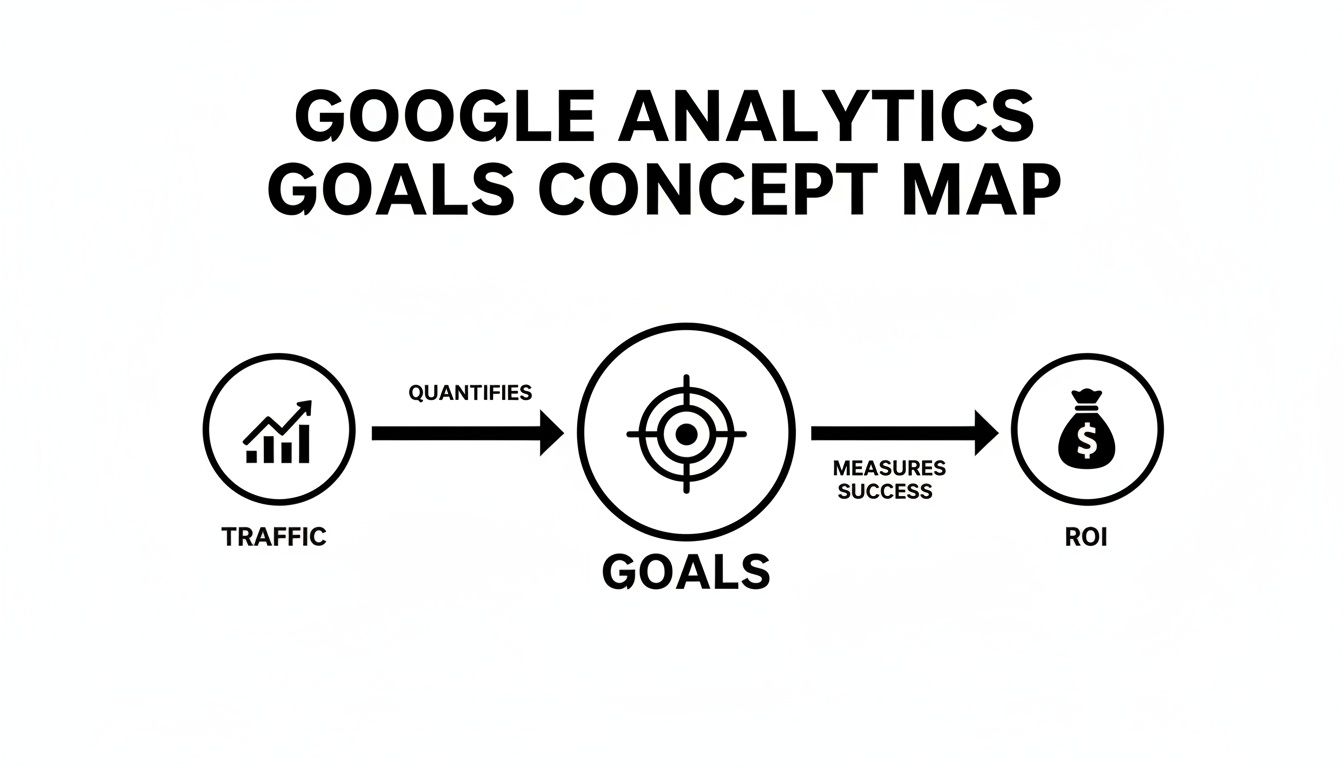
Whether you call them goals or conversions, they are the critical link between what users do on your site and the results you care about.
Let’s use a real-world example. For an e-commerce store, a classic UA Destination goal was tracking when a user landed on the thank-you.html page after a purchase. It worked, but it only told you that someone reached a page. It didn't give you any context about the purchase itself, like how much they spent or what they bought.
In GA4, that same action is a purchase event, but it's loaded with rich information. It's not just a page view; it can carry valuable details (called parameters) like currency, value, and items. When you mark that purchase event as a conversion, you’re tracking the entire transaction, not just the final step. Understanding which channels drive these valuable actions is key, and you can dig into this by analyzing your organic search in Google Analytics.
Universal Analytics Goals vs GA4 Conversions: A Head-to-Head Comparison
To truly grasp the change, it helps to see the differences laid out side-by-side. The old way of doing things in UA feels quite limited once you get used to the flexibility GA4 offers for tracking user behavior across different platforms.
| Feature | Universal Analytics (UA) | Google Analytics 4 (GA4) |
|---|---|---|
| Core Concept | Session-based goals with 4 rigid types (Destination, Duration, etc.). | Event-based model where any event can be a conversion. |
| Setup Process | Often required a two-step process: create an event, then create a goal from that event. | Direct and simple: toggle a switch to mark an existing event as a conversion. |
| Tracking Limits | Limited to 20 goals per view, which was a real bottleneck for complex sites. | Allows for up to 30 conversions per property, offering much more room to grow. |
| Cross-Platform | Primarily designed for websites, making it a headache to unify app and web data. | Built from the ground up for a unified customer journey across websites and apps. |
Ultimately, this shift forces us to be more deliberate about what actions truly signal success. Instead of leaning on vague metrics like session duration, you can now pinpoint specific, meaningful interactions—like watching 75% of a video, clicking a specific "request a demo" button, or finishing a multi-step form—and designate that exact event as your conversion. It’s a far more precise and powerful way to connect what's happening on your website to your actual business objectives.
Getting Your Hands Dirty: Setting Up Conversions in GA4
Alright, enough with the theory. Let's get into the good stuff. Setting up conversions in Google Analytics 4 is where you start turning your business goals into cold, hard data. We're going to skip the generic "button click" examples and walk through three high-value setups that pretty much every business can use: tracking lead form submissions, newsletter signups, and outbound affiliate clicks.

Before we jump in, a quick but important aside: none of this tracking matters if your website is broken or frustrating to use. If users can't find your form or the page loads too slowly, your conversion rates will suffer, no matter how good your analytics setup is. For a solid foundation, I always recommend starting with a health check of your site. Running through a comprehensive site audit checklist can uncover issues that are torpedoing your conversions before a user even gets a chance to act.
Creating a Custom Event for Lead Form Submissions
If you run a service-based business, that "Contact Us" form submission is everything. It's your main macro-conversion. Instead of just relying on GA4's generic 'form_submit' event—which can fire for every single form on your site, creating a mess—we'll create a dedicated 'generate_lead' event. This gives you clean, unambiguous data.
The absolute best tool for this job is Google Tag Manager (GTM). It gives you surgical precision without ever needing to touch your website’s code.
Here's the game plan:
- Make a New Trigger: Inside GTM, you'll set up a "Form Submission" trigger. The key is to configure it to fire only on your main contact form. You can usually do this by targeting its unique Form ID or a specific CSS class on the submit button.
- Create the GA4 Event Tag: Now, create a new tag using the "Google Analytics: GA4 Event" type. In the Event Name field, type in
generate_lead. - Link Them Together: Finally, attach the form submission trigger you just made to this new GA4 tag. Now, whenever someone submits that specific form, GTM sends our custom
generate_leadevent straight to GA4.
Once you see the event popping up in your GA4 Realtime report, you just have one last step. You need to officially tell GA4 that this action is important.
Head over to Admin > Data display > Events. You'll see your new generate_lead event in the list. Just flip the switch in the Mark as conversion column. That’s it. Give it about 24-48 hours, and you'll see it populating your conversion reports.
Tracking Newsletter Signups with a Thank You Page
Growing your email list is another classic goal. One of the most reliable ways to track this is to send new subscribers to a dedicated "thank you" page. This method is super straightforward and you can often set it up right in the GA4 interface—no GTM needed.
Let's imagine your confirmation page is yourwebsite.com/newsletter-thank-you. We can create a new conversion event that fires only when a user lands on this page.
Navigate to Admin > Data display > Events and click the Create event button.
- Custom Event Name: Give it a simple, clear name. I like
newsletter_signup. - Matching Conditions: Now you set the rules. You need two conditions here:
event_nameequalspage_viewpage_locationcontains/newsletter-thank-you
This setup essentially tells GA4, "Hey, every time a normal page_view happens on a URL containing /newsletter-thank-you, I want you to also create this new newsletter_signup event for me." Just like our last example, after saving this rule, you pop back over to the Events list and mark newsletter_signup as a conversion.
Pro Tip: For goals like lead forms or signups, think about changing the counting method. By default, GA4 counts a conversion every time the event fires. To avoid accidentally inflating your numbers if someone submits a form twice, change the counting method to Once per session.
Measuring Outbound Affiliate Link Clicks
If you're in the affiliate marketing game, clicks on your outbound links are the metric that pays the bills. GA4's Enhanced Measurement can track these automatically, but creating your own custom event gives you way more control and much cleaner data.
This is another perfect job for Google Tag Manager, because we can target links that contain a specific affiliate identifier.
- Enable Click Variables: First, pop over to the Variables section in GTM and make sure the built-in "Click URL" variable is enabled.
- Create a Click Trigger: Set up a "Just Links" trigger. Configure it to fire on "Some Link Clicks" where the Click URL contains whatever is unique to your affiliate links, like
affiliatesite.comor a parameter like?aff_id=. - Create the GA4 Event Tag: Build a new GA4 Event tag and name it
affiliate_click. To get even more insight, you can pass the specificClick URLas an event parameter calledlink_url. - Connect the Dots: Attach your new click trigger to the
affiliate_clicktag.
Once you publish the changes in GTM, go into GA4 and mark the incoming affiliate_click event as a conversion. Now you'll have a crystal-clear count of every user you send to a partner site, giving you a direct view of your referral performance. This is the kind of data that truly makes a difference.
In fact, surveys show that 71% of small businesses rely on Google Analytics to make strategic decisions. For them, focusing on just a few core targets like Users, Engagement Time, and Conversions creates a simple, powerful roadmap for growth. By setting up these specific conversion events, you're moving beyond vanity metrics and starting to measure what really matters.
How to Test and Troubleshoot Your Conversion Tracking
Getting a conversion event set up is a great feeling, but that's really only half the job. If you're not actually testing it to make sure the data is accurate, you’re flying blind. Real confidence in your Google Analytics goals comes from knowing they fire correctly every single time a user takes that key action.
Luckily, GA4 has a fantastic real-time tool that makes this process surprisingly easy: DebugView. Think of it as a live EKG for your website's data, showing you every single event and parameter the moment it happens. It's about to become your best friend for verifying that your tracking is working perfectly before you call it a day.
Your Go-To Tool for Real-Time Verification
To get started with DebugView, you first need to put your browser into debug mode. The simplest way is to use the Preview mode in Google Tag Manager, which automatically flags your session for debugging. Another excellent option is the official Google Analytics Debugger Chrome extension.
With that enabled, pop over to your GA4 property and navigate to Admin > Data display > DebugView.
Now, in that same browser, go to your website and perform the exact action you want to test—like submitting a contact form or clicking a specific button. As you watch the DebugView stream, you should see your custom event, like generate_lead, appear in the timeline almost instantly.
Events you’ve marked as conversions get a special touch: a little green flag icon. This gives you immediate visual confirmation that GA4 is not only receiving the event but is also correctly identifying it as a valuable conversion.
Common Issues and Quick Fixes
But what if your conversion event doesn't show up? Don't panic. Tracking issues are incredibly common, but they're almost always caused by a handful of simple misconfigurations. Here’s a quick checklist to run through when your data looks off.
- Data Processing Delays: Remember that standard GA4 reports can take 24-48 hours to fully process new conversion data. DebugView is your source of truth for real-time events, so trust it over your main reports for the first day or two.
- Incorrect GTM Triggers: This is a classic. A trigger that’s too broad or too specific won't work as you expect. Double-check that your GTM trigger is set to fire on the exact form ID, button click, or page URL. Precision matters—a tiny typo can break everything.
- Inconsistent Naming: GA4 is case-sensitive, which trips up a lot of people. An event named
generate_leadis treated as completely different fromGenerate_Lead. Make sure the event name in your GTM tag matches the one you marked as a conversion in GA4 exactly. - Measurement Code Not Installed: It sounds basic, but it happens more often than you'd think. Use your browser's developer tools to confirm your Google Analytics measurement ID is correctly installed and loading on every page of your site.
- No Retroactive Data: Marking an event as a conversion isn't retroactive. It only applies to data collected after you flipped the switch. GA4 won't go back in time and reclassify past events as conversions.
By making DebugView a standard part of every new conversion setup and using this troubleshooting checklist, you build a data foundation you can actually rely on. Accurate tracking isn't just a technical chore; it's the bedrock for understanding performance and making smart decisions about how you track your website traffic to drive real growth.
Turning Conversion Data Into Actionable Insights
So, you've got your conversion tracking set up. That’s a huge win, but let's be real—the data itself is just a pile of numbers. The magic happens when you start turning that raw data into smart business decisions. Analyzing your conversion reports is how you go from just tracking Google Analytics goals to actually improving your bottom line.

This isn’t about finding one single "magic report." It’s about learning to ask the right questions and knowing where to look inside GA4 to get the answers. Fortunately, GA4 has some powerful reports that give you a clear window into what’s really going on.
Navigating Your Core Conversion Reports
Your analysis journey starts right inside the GA4 reporting interface. There are a couple of key spots you'll want to get comfortable with to understand how people are converting.
First up, head to Reports > Engagement > Conversions. Think of this as your main dashboard for conversion performance. It gives you a high-level look at all the events you’ve flagged as conversions, showing total counts, any associated revenue, and how many users completed each goal.
Next, you'll want to see where these conversions are coming from. For that, the Reports > Acquisition > Traffic acquisition report is your best friend. This is where you can see exactly which marketing channels—like Organic Search, Paid Search, or Direct—are actually driving results.
This is where the story starts to come together. You're no longer just seeing that a conversion happened; you're seeing what brought that person to your site to begin with.
Diagnosing Problems and Finding Opportunities
With this data ready to go, you can put on your detective hat. Your job is to spot patterns, identify anything that looks off, and uncover opportunities to do better. Let's walk through a classic scenario I see all the time.
Imagine your Traffic Acquisition report shows a new paid social media campaign is driving a ton of traffic to your landing page—say, 10,000 users last month. Awesome, right? But then you see the conversion rate for that traffic is a painful 0.5%.
That’s a textbook performance problem. The ad is clearly doing its job of getting clicks, but the landing page is dropping the ball. This single insight immediately gives you a hit list of things to investigate:
- Message Mismatch: Does the ad promise one thing, but the landing page talks about something else? That disconnect is a conversion killer.
- Poor User Experience: Is the page painfully slow on mobile? Is the form buried at the bottom or asking for way too much information?
- Unclear Call-to-Action: Is it crystal clear what you want the user to do? A vague or hidden CTA will tank your conversion rate.
By breaking down your conversion data by traffic source, you can find these weak links in your funnel and focus your energy where it'll make the biggest difference. If you're looking for more ideas, our guide on actionable conversion optimization tips is a great place to start fixing these kinds of issues.
Using Segments to Uncover Your Best Customers
Here’s another powerful trick: analyzing conversions by audience segment. You can create segments in GA4 based on almost anything—demographics, the device they used, where they live, you name it.
For instance, an e-commerce store could build a segment for "mobile users from California who first visited from an Instagram ad." When you apply that filter to your reports, you might find this specific group has a 300% higher average order value than anyone else.
That is a goldmine. It tells you exactly who your most valuable customers are and how to find them, letting you double down on what's already working. You could build lookalike audiences from this segment for future ads or create special promotions just for them.
Once your data is reliable and you're pulling these kinds of insights, you're ready to explore high-impact conversion optimization techniques that can truly move the needle. It's the logical next step. Analysis tells you what is happening, and optimization is how you make it happen even better.
Answering Your Top Questions About Google Analytics Goals
As you start working with goals and conversions, you'll inevitably run into a few head-scratchers. It happens to everyone. Let's tackle some of the most common questions I hear, so you can get clear answers and feel confident in your tracking setup.
How Many Conversions Can I Set Up in GA4?
In a standard Google Analytics 4 property, you can mark up to 30 different events as conversions. This is a nice bump up from the 20-goal limit we had per view in Universal Analytics, giving you a lot more breathing room.
Keep in mind that some crucial events, like the purchase event for e-commerce stores, are already considered conversions by default and don't count against your 30-event limit. This frees you up to track all those important micro-conversions without hitting a ceiling.
Why Aren't My Conversions Showing Up?
First off, don't panic. This is probably the most common "issue" people face, and the fix is usually simple. More often than not, it's just a matter of waiting. Standard GA4 reports can take 24-48 hours to process and display new conversion data.
If you've given it enough time and still see nothing, it's time to do a little detective work.
- Pop open GA4's DebugView tool. It gives you a live look at the events firing on your site.
- Perform the conversion action yourself (like submitting a test form). You should see the event pop up in DebugView almost instantly.
- If the event is firing correctly, the final step is to double-check your Admin settings. You need to have explicitly toggled that specific event "on" as a conversion. An event can fire perfectly, but if you haven't told GA4 it’s important, it will never show up in your conversion reports.
Can I Just Import My Old Universal Analytics Goals into GA4?
Google did offer a 'Goals migration tool' to help with the transition, but I'll be honest—I'm not a huge fan. The tool tries to map your old UA goals (like Destination goals) to new GA4 events, but it's not always a clean translation.
My advice? Rebuild them from scratch, manually. This might sound like more work, but it forces you to rethink your measurement strategy. It’s the perfect opportunity to confirm what’s truly a meaningful action for your business today and build a clean, reliable tracking plan based on GA4’s event-driven model.
What's the Real Difference Between an Event and a Conversion in GA4?
This is the single most important concept to get right in GA4. Here’s the simplest way to think about it:
Almost everything a user does on your site is an event. A page_view is an event. A scroll is an event. A click is an event. Your GA4 property collects thousands, even millions, of these.
A conversion, on the other hand, is just an event that you've flagged as being especially valuable to your business. You might have 500,000 scroll events this month, but you'd only mark the form_submission event as a conversion because that action directly leads to a new business opportunity.
So, all conversions are events, but you only give the "conversion" title to the most important events.
Ready to transform your website from a simple online brochure into a powerful conversion machine? At Sugar Pixels, we specialize in designing and developing websites that not only look great but are also built to achieve your most important business goals. Learn more about our web design and digital marketing services.